
Bible Study
How to Read the Bible on Your Phone Without Getting Distracted
Simple iPhone and Android settings that silence notifications, limit distracting apps, and make Scripture the easy thing to open.
You open your Bible app with good intentions. A notification slides down, you tap it, and twenty minutes later you are scrolling somewhere you never meant to go. If that sounds familiar, you are not alone.
A phone can be a great place to read Scripture. It puts commentaries, cross-references, original-language tools, and search a tap away in a way a printed Bible cannot. But the same device is designed to pull your attention somewhere else. The good news is that iPhone and Android already include the tools you need to tip the balance back toward Scripture. This guide walks through the settings I would recommend, with steps for both.
The short version
- Silence notifications automatically whenever you open your Bible app.
- Limit the apps that pull you away, especially during the time you set aside to read.
- Make your Bible app the easiest thing to open when you pick up your phone.
Each step takes a few minutes to set up and works on its own after that.
Silence notifications while you read
Most distractions start with a notification. One text is enough to pull you out of a passage, and it rarely ends with that one message. The best fix is one you never have to remember: have Do Not Disturb turn on by itself when you open your Bible app.
iPhone
iPhone can turn on a Focus whenever you open a specific app and turn it off again when you leave.
- Open Settings > Focus and choose Do Not Disturb. You can also tap + to create a custom Focus named something like “Bible Reading.”
- Under Set a Schedule, tap Add Schedule, then App.
- Choose your Bible app.
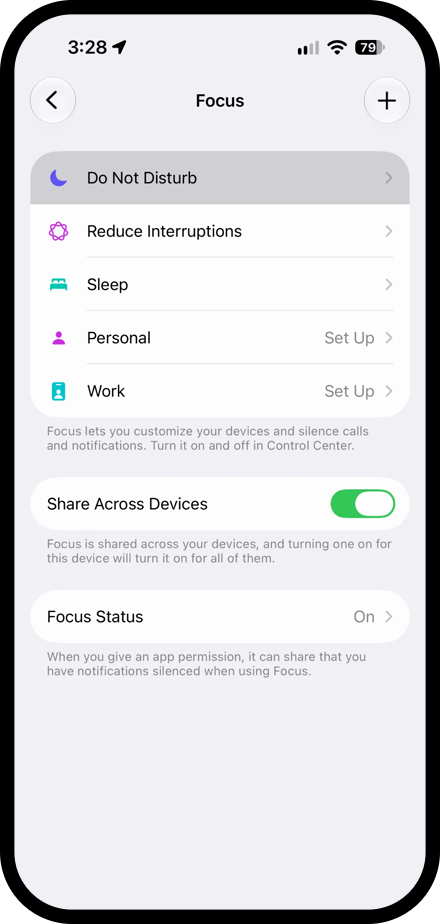
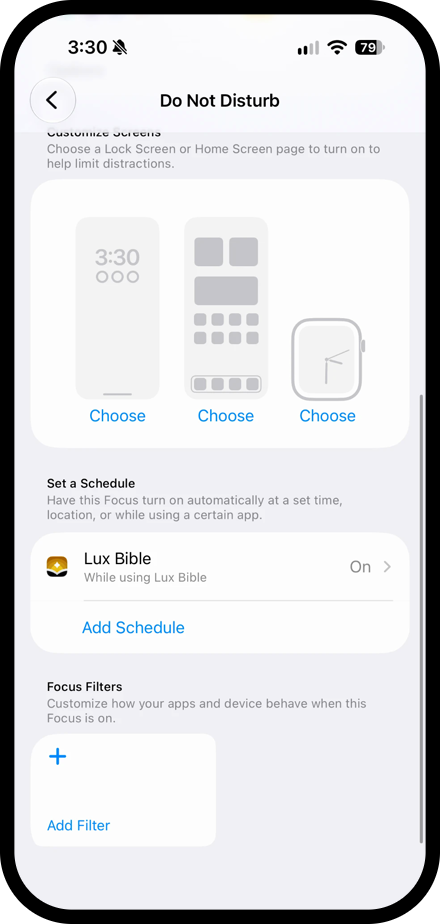
Do Not Disturb now turns on as soon as you open your Bible app and turns off when you switch to another app. Calls from the people you allow, such as your favorites, still come through.
You can get the same result with two automations in the Shortcuts app:
- Open Shortcuts, tap Automation, then tap +.
- Choose App, select your Bible app, check Is Opened, and choose Run Immediately.
- Add the Set Focus action and set it to turn Do Not Disturb on until turned off.
- Create a second automation the same way, but check Is Closed and set it to turn Do Not Disturb off.
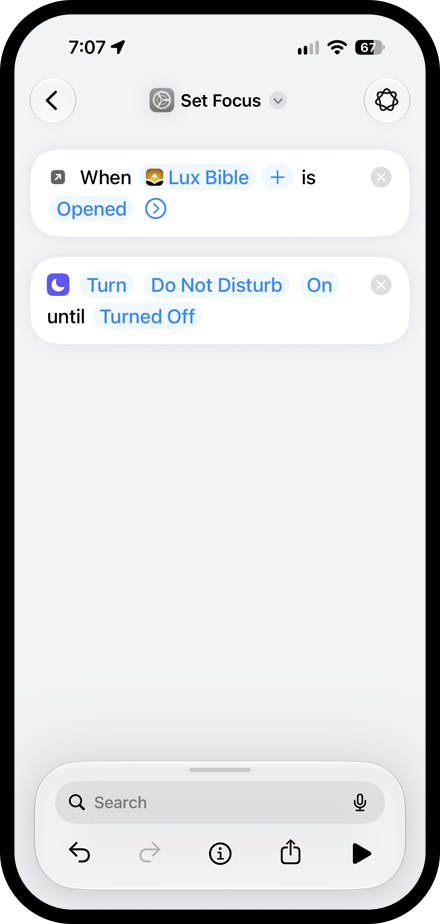
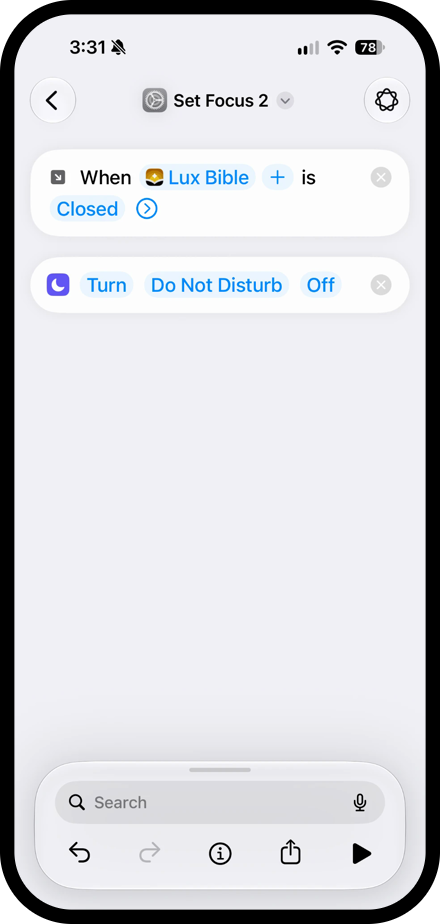
If you would rather keep Do Not Disturb on when you briefly step out of your Bible app, such as to write in a journal app, skip the second automation. Just remember to turn Do Not Disturb off in Control Center when you finish reading.
Android
The options on Android depend on your phone.
- Samsung Galaxy: Modes and Routines can turn on Do Not Disturb when an app opens. Go to Settings > Modes and Routines > Routines and tap +. Under If, add App opened and choose your Bible app. Under Then, add Do not disturb and set it to on. When you leave the app, the routine ends and your previous settings return.
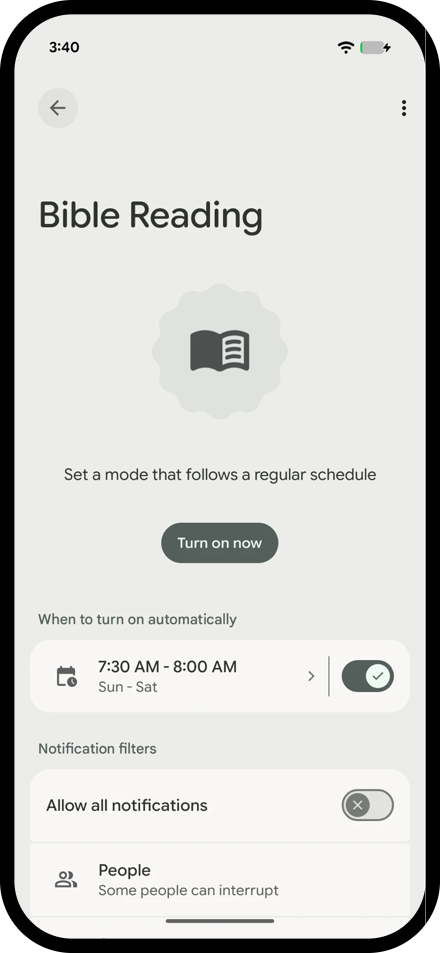
- Pixel and other phones: There is no built-in way to start Do Not Disturb when a specific app opens. Instead, create a mode in Settings > Modes named something like “Bible Reading” and choose which people and apps can still reach you. Then schedule it for the time you usually read, or turn it on from Quick Settings before you open your Bible. On older versions of Android, the same options are under Do Not Disturb.
Limit the apps that pull you away
Sometimes no notification is needed. Habit alone can send your thumb to another app halfway through a chapter. Both iPhone and Android let you put limits on the apps you reach for most.
iPhone
Open Settings > Screen Time. Two features are especially helpful.
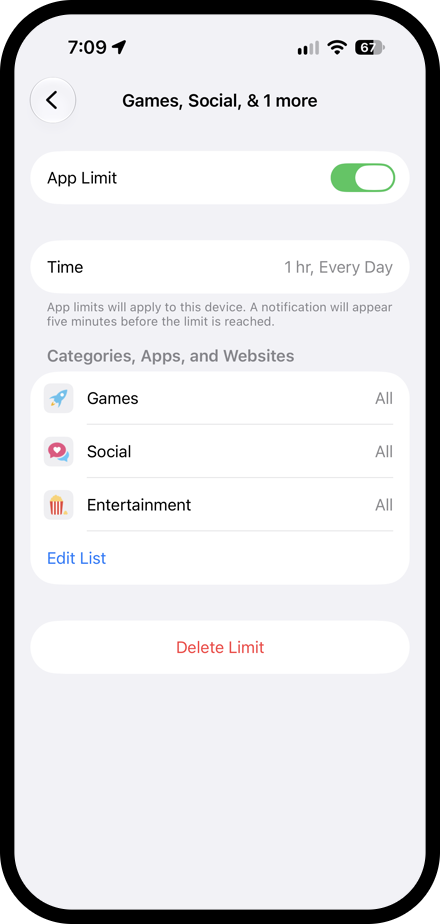
App Limits set a daily time limit for apps or whole categories. Tap App Limits > Add Limit and choose categories such as Social, Games, and Entertainment. Once you reach the limit, those apps are blocked for the rest of the day.
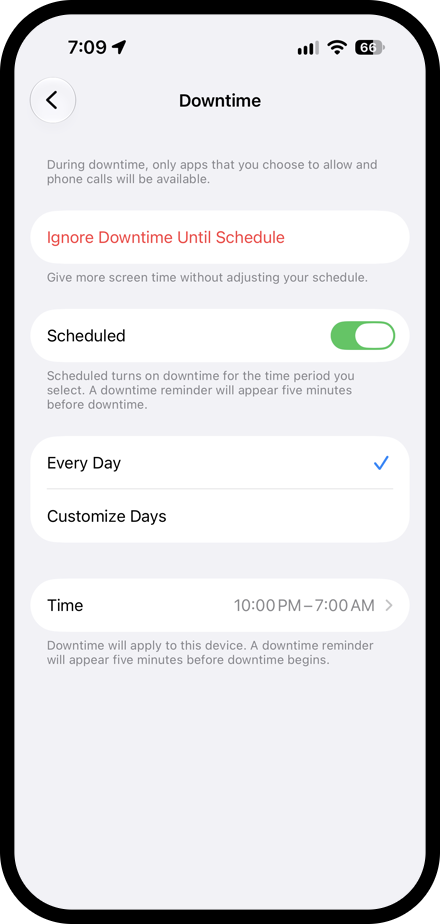
Downtime schedules a window when only the apps you choose are available. If you read first thing in the morning, set Downtime to end after your usual reading time so nothing else competes for your attention. Add your Bible app to Always Allowed in Screen Time so it stays available.
These limits are easy to bypass, since Screen Time lets you ignore a limit with a tap. To make them stick, turn on Lock Screen Time Settings and ask a friend or family member to choose the passcode for you.
Android
Open Settings > Digital Wellbeing & parental controls. You will find two helpful tools there.
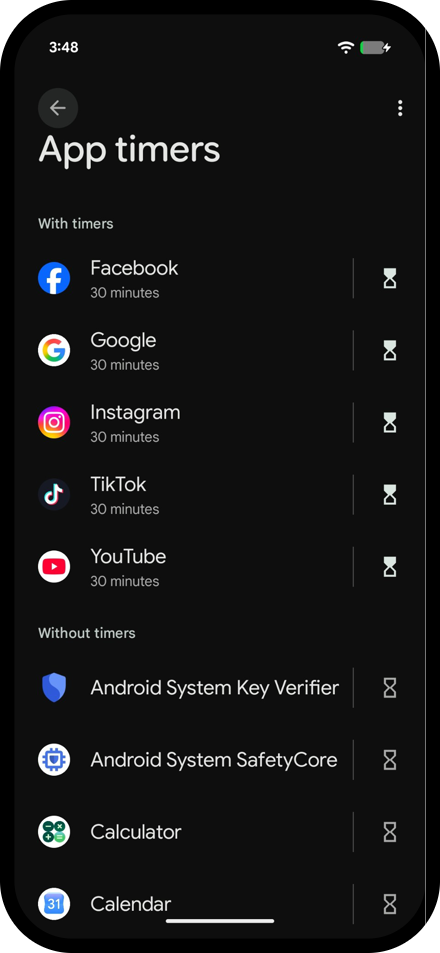
App timers set a daily limit for any app. When the timer runs out, the app is paused for the rest of the day.
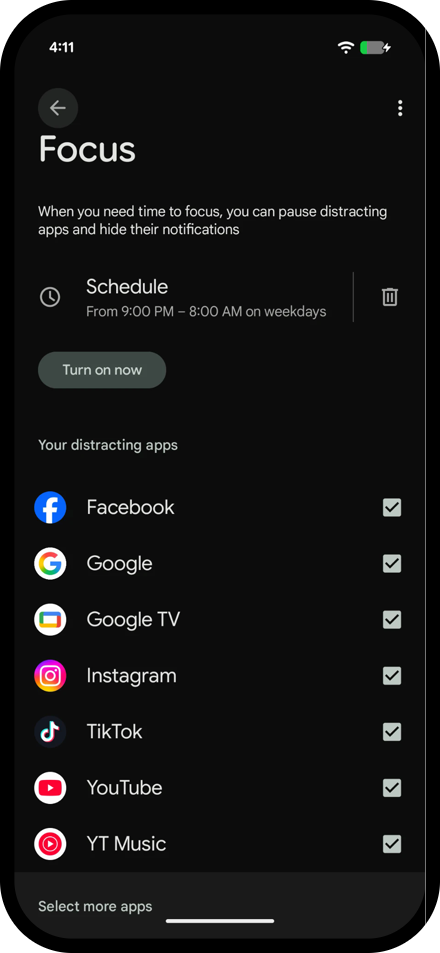
Focus pauses a group of distracting apps all at once. Turn it on before you read or schedule it for your usual reading time. Paused apps don't send notifications, and opening one reminds you that it is paused. On Samsung phones, the modes in Modes and Routines serve a similar purpose.
Read offline
The surest way to stop interruptions is to disconnect entirely. Airplane mode blocks messages, notifications, and the temptation to look something up online. It also blocks calls, so it works best when you don't need to be reachable.
Before you try it, make sure your Bible app works without a connection. Many apps stream their translations and study tools, so they stop working the moment you go offline. If your app lets you download translations, do that ahead of time.
Being able to study anywhere was one of the reasons I built Lux to work offline. Its included translations, such as the BSB, CSB, and KJV, work in airplane mode along with its commentaries, cross-references, interlinear, lexicons, and dictionaries. Online translations and audio still need a connection.
Make Scripture the easy thing to open
Habits follow the path of least resistance. If your thumb goes straight to social media every time you unlock your phone, give it something better to find.
- Swap places. Move your Bible app to the spot your most distracting app used to occupy, such as the dock or the first position on your home screen. Move the distracting app into a folder on a later page.
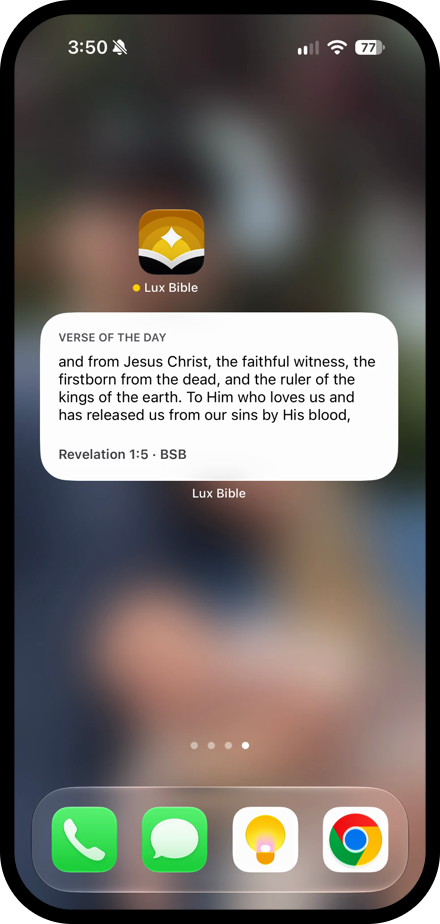
- Add a verse of the day widget. Many Bible apps, including Lux, offer one, so the first thing you see when you unlock your phone is Scripture.
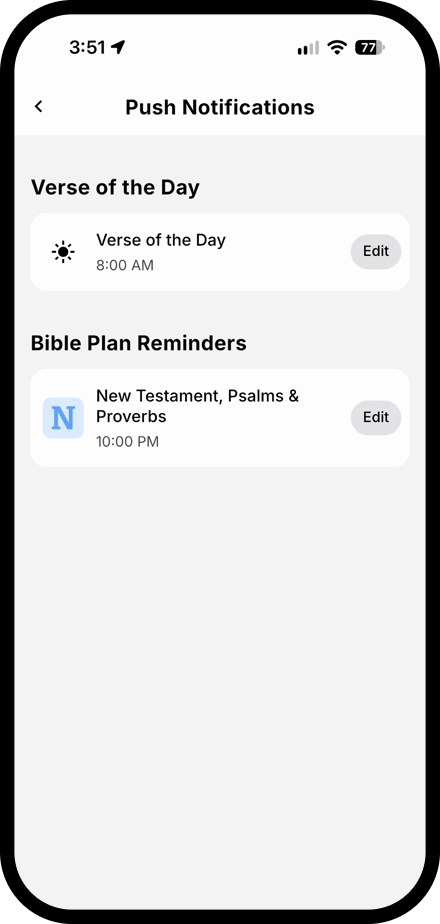
- Set a daily reminder. A reminder from your Bible app is a notification that pulls you toward Scripture instead of away from it. In Lux, you can schedule a Verse of the Day or Bible plan reminder for any time of day, so pick the time you want to read. When it arrives, commit to leaving it on your screen until you have read. Tapping it takes you straight to the passage.
Know what you will read before you open
Distraction often creeps in right after you open your Bible, while you wonder where to start. A few seconds of indecision is enough to send you to another app. Deciding ahead of time removes that moment.
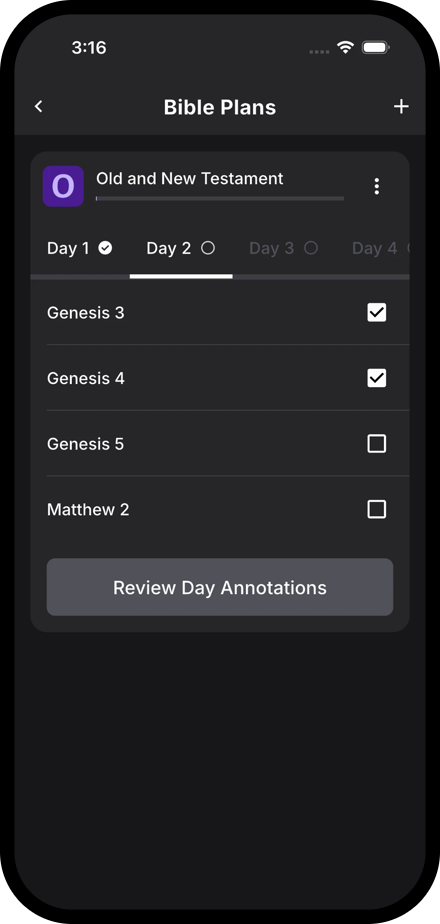
A reading plan works well for this. It tells you exactly which passage is next, and checking off each day gives you a reason to come back tomorrow. If you prefer to choose for yourself, pick tomorrow's passage when you finish today's.
A regular time and place help too. Reading at the same point in your day, such as with your morning coffee or before bed, turns it into a habit rather than a decision you make each time. Jesus Himself made room to be alone with the Father.
Early in the morning, while it was still dark, Jesus got up and went out to a solitary place to pray.
When you get distracted anyway
No setting will make you perfectly focused. Now and then you will still catch yourself halfway through another app. When it happens, close it and go back to where you left off. You don't need to start over or feel guilty. The goal is time with God, not a perfect record.
The psalmist knew his eyes could wander too, and he asked God to turn them back toward His word. It is a good prayer to pray before you start reading.
Turn my eyes away from worthless things; revive me with Your word.
Set up one or two of these today, and see how much more of your reading time actually goes to reading.